Remote management
If you created a Cloudflare Tunnel from the Zero Trust Dashboard, the tunnel runs as a service on your OS. You can modify the Cloudflare Tunnel service with one or more configuration options .
Linux
On Linux, Cloudflare Tunnel installs itself as a system service using systemctl. By default, the service will be named cloudfared.service. To configure your tunnel on Linux:
-
Open
cloudflared.service.sudo systemctl edit --full cloudflared.service -
Modify the
cloudflared tunnel runcommand with the desired configuration flag. The following example changes the tunnelprotocolto QUIC:--- highlight: [8] --- [Unit] Description=Cloudflare Tunnel After=network.target [Service] TimeoutStartSec=0 Type=notify ExecStart=/usr/local/bin/cloudflared --protocol quic tunnel run --token <TOKEN VALUE> Restart=on-failure RestartSec=5s
MacOS
On MacOS, Cloudflare Tunnel installs itself as a launch agent using launchctl. By default, the agent will be called com.cloudflare.cloudflared. To configure your tunnel on MacOS:
-
Stop the
cloudflaredservice.sudo launchctl stop com.cloudflare.cloudflared -
Unload the configuration file.
sudo launchctl unload /Library/LaunchDaemons/com.cloudflare.cloudflared.plist -
Open
/Library/LaunchDaemons/com.cloudflare.cloudflared.plistin a text editor. -
Modify the
ProgramArgumentskey with the desired configuration flag. The following example changes the tunnelprotocolto QUIC:--- highlight: [8,9] --- <plist version="1.0"> <dict> <key>Label</key> <string>com.cloudflare.cloudflared</string> <key>ProgramArguments</key> <array> <string>/opt/homebrew/bin/cloudflared</string> <string>--protocol</string> <string>quic</string> <string>tunnel</string> <string>run</string> <string>--token</string> <string>TOKEN VALUE </string> </array> -
Load the updated configuration file.
sudo launchctl load /Library/LaunchDaemons/com.cloudflare.cloudflared.plist -
Start the
cloudflaredservice.sudo launchctl start com.cloudflare.cloudflared
Windows
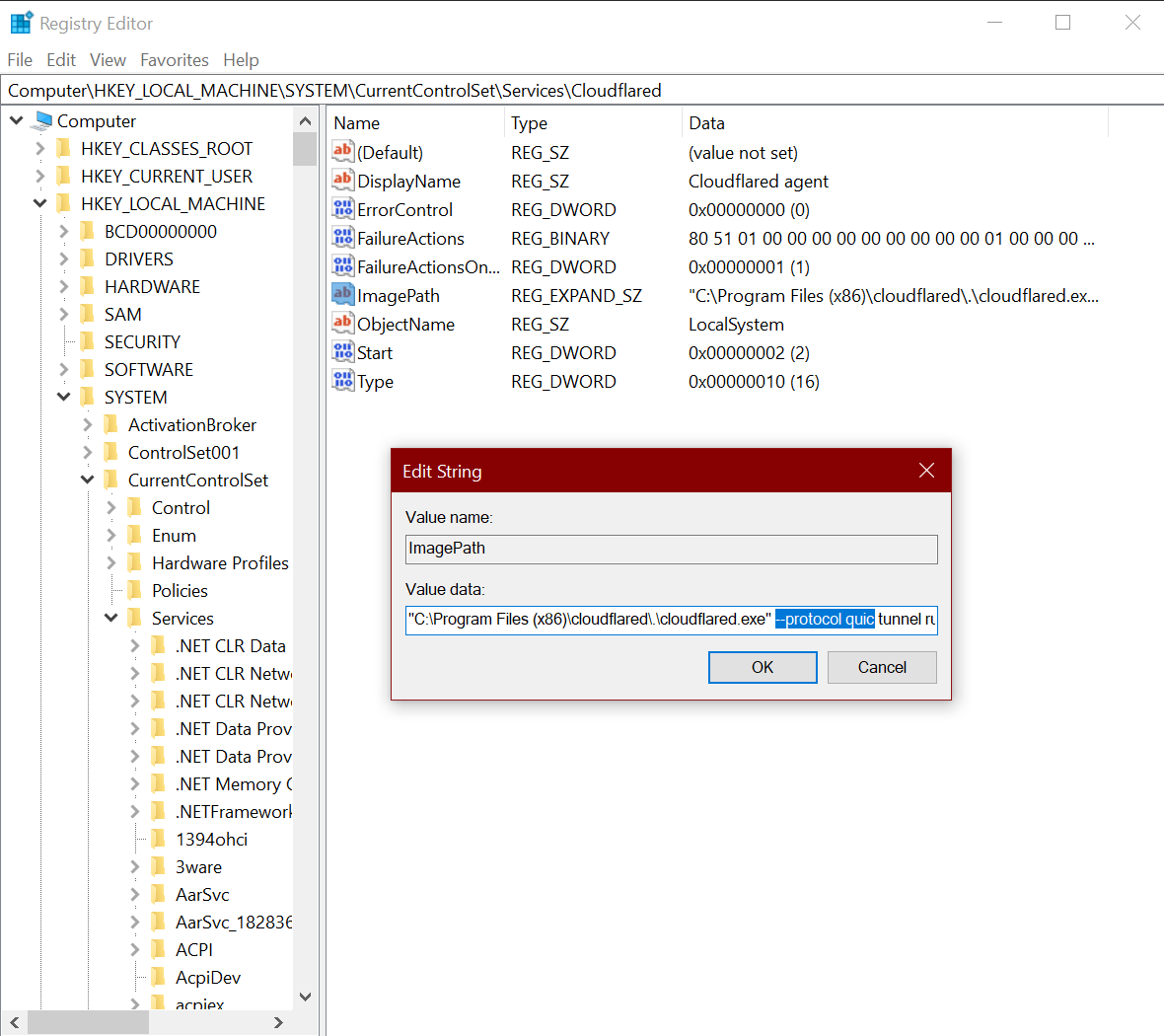
On Windows, Cloudflare Tunnel installs itself as a system service using the Registry Editor. By default, the service will be named cloudfared. To configure your tunnel on Windows:
-
Open the Registry Editor.
-
Navigate to HKEY_LOCAL_MACHINE > SYSTEM > CurrentControlSet > Services > cloudflared.
-
Double-click ImagePath.
-
Modify Value data with the desired configuration flag. The following example changes the tunnel
protocolto QUIC:C:\Program Files (x86)\cloudflared\.\cloudflared.exe --protocol quic tunnel run --token <TOKEN VALUE>